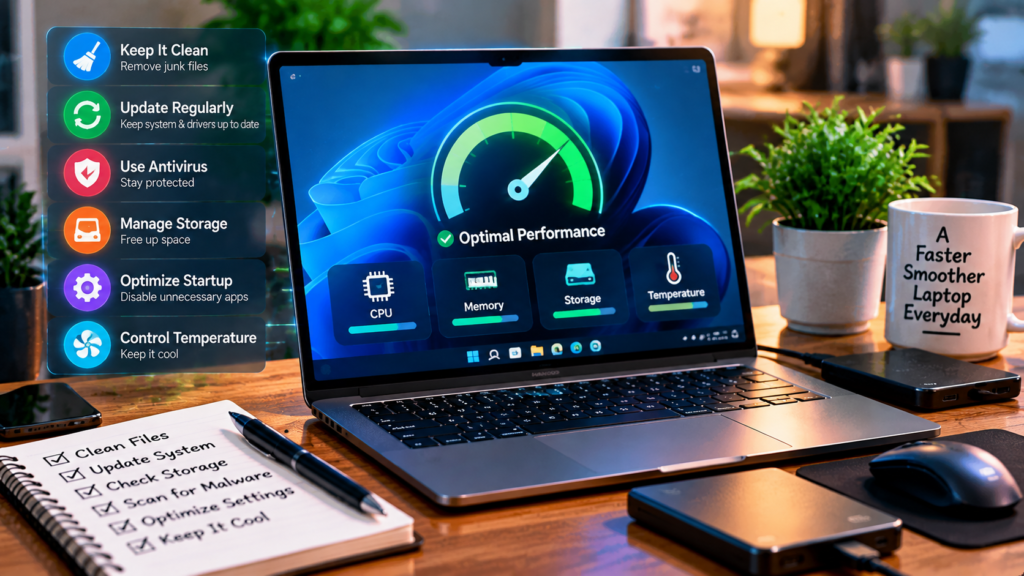
A laptop may feel slower over time as storage fills, background apps accumulate or software becomes outdated. A few maintenance habits can improve the experience.
Check storage
Remove files and apps you no longer need, but avoid deleting system files. Keep enough free space for updates and normal operation.
Review startup apps
Disable programs that do not need to launch when the computer starts. Close browser tabs and apps that consume resources when they are not in use.
Update safely
Install operating system and driver updates from official sources. Back up important files before major upgrades.
Manage heat
Use the laptop on a firm surface and keep vents clear. Excessive heat can reduce performance and may shorten component life.
The takeaway
Maintenance helps, but older hardware has limits. If performance remains poor, check memory, storage health and the demands of your workload.
('A sensible selection process', 'Write down the task the software must perform, the file formats you need and the devices it must support. Test a realistic workflow before moving important work into it. Confirm how data can be exported so you are not locked into a service without a workable exit plan.')
('Maintenance matters', 'Keep the application updated, remove extensions or add-ons you no longer use and review access permissions after major changes. For team software, assign an owner who can manage accounts, renewals, backups and access when staff roles change.')
Frequently asked questions
How can I choose software that will remain useful?
Test it on a realistic task, check privacy and support terms, and make sure your data can be exported.
Why does context matter?
Specifications, availability and best practices can differ by product, region and date. Check current official documentation before making a purchase or changing an important system.